
How-to guide
How to download a GPX file from Strava, Garmin and other watches
A GPX file is a small file that records the exact line you ran, rode or walked, point by point. You need one to print your own route on a map, to share it, or to load it into another app. Here is how to get it out of the most common apps.

From Strava
Open the activity on strava.com in a web browser (the export option is not in the phone app). Click the three-dot menu next to the activity and choose Export GPX. The file downloads straight away.
From Garmin Connect
Open the activity in Garmin Connect on the web, click the gear icon at the top right of the activity and choose Export to GPX.
From other watches and apps
Most running apps, including Coros, Suunto and Polar, can export a GPX from the activity page on their website or app. If yours cannot, the easiest route is to sync it to Strava first and export it from there.
Some apps, such as Nike Run Club, do not offer an export at all. In that case you can still trace the route by hand on a map: our map builder has a Draw a route option, and the distance updates as you click.
What to do with your GPX
Open the map builder, drop in the file and you see your route on the real terrain in 3D within about a minute. You can turn it into a framed piece with your name, date and time, or download the print files to 3D-print it yourself.
- Running a race we already map? You can also upload your GPX when you order, and we print your exact line instead of the official course.
- Hiked with a group? One GPX is enough for everyone's names on the same map.
The maps in this guide
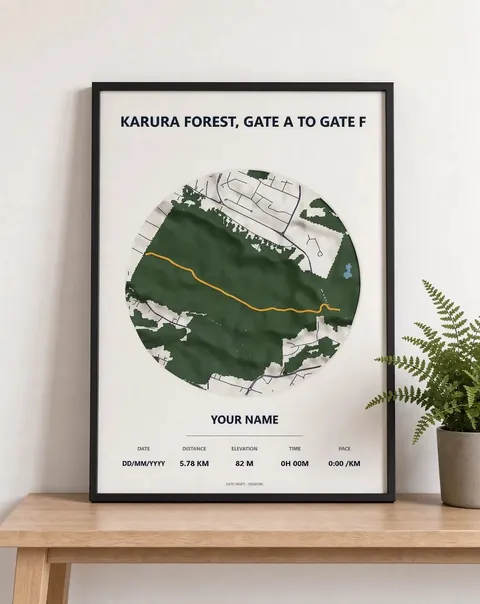 Karura Forest, Gate A to Gate F Framed 3D map · from KES 4,000
 Nairobi City Marathon Framed 3D map · from KES 4,000
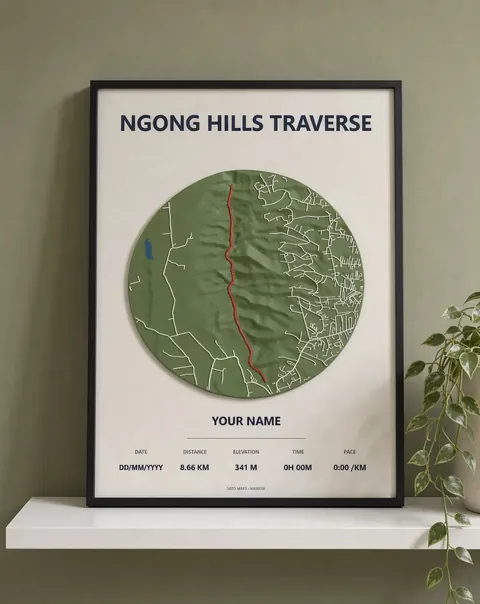 Ngong Hills traverse Framed 3D map · from KES 4,000
More guides
- Mt Kenya routes compared: Sirimon, Naro Moru and Chogoria
- Ngong Hills hike: distance, climbing and what to expect
- Gift ideas for runners in Kenya
- Mt Longonot hike: the crater rim loop explained
- Karura Forest walk: Gate A to Gate F
- Nairobi marathons: the StanChart and Nairobi City Marathon courses
- Day hikes near Nairobi: Ngong Hills, Longonot and Karura
- The World Marathon Majors explained
- How to display your marathon medal and race bib